
GPT Image 2 is preselected below. Adjust your settings and review the credit estimate before generating.
GPT Image 2 AI Image Generator
Create images with GPT Image 2, or upload a reference and describe your edits. Choose an aspect ratio and output resolution in the image workspace.
My works
Your results will appear here.
Image examples and prompts
Explore example images and reuse their prompts. Results vary by model and settings.
AI Image Generator from Image
Start with a photo instead of a blank canvas. Image-to-image generation uses your uploaded picture and a text prompt to create a new version. Describe the change and the details you want to keep.
- Try a new style, such as a 3D illustration or watercolor.
- Ask for a different background, setting or lighting.
- Adjust colors or details, then refine the result in conversation.
Sign in to upload JPG, PNG or WebP images. Generation uses credits.
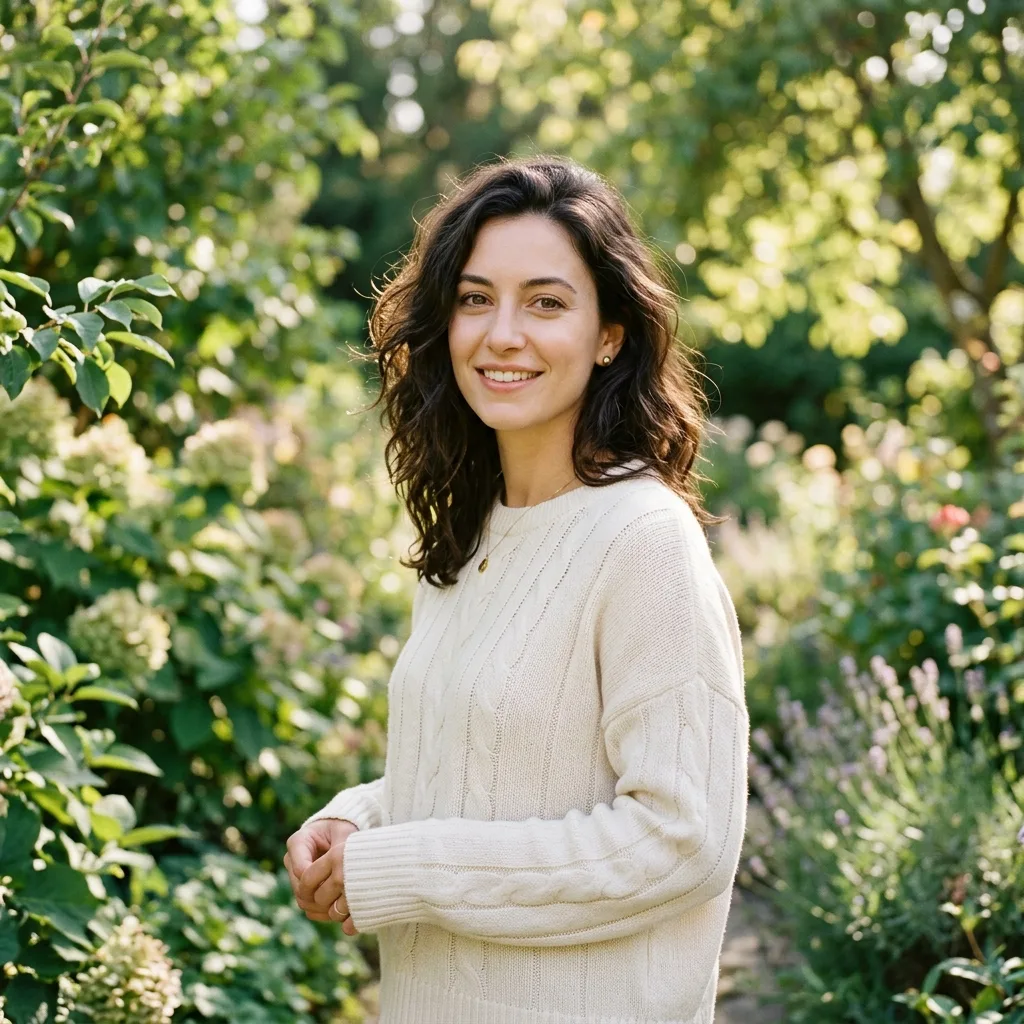
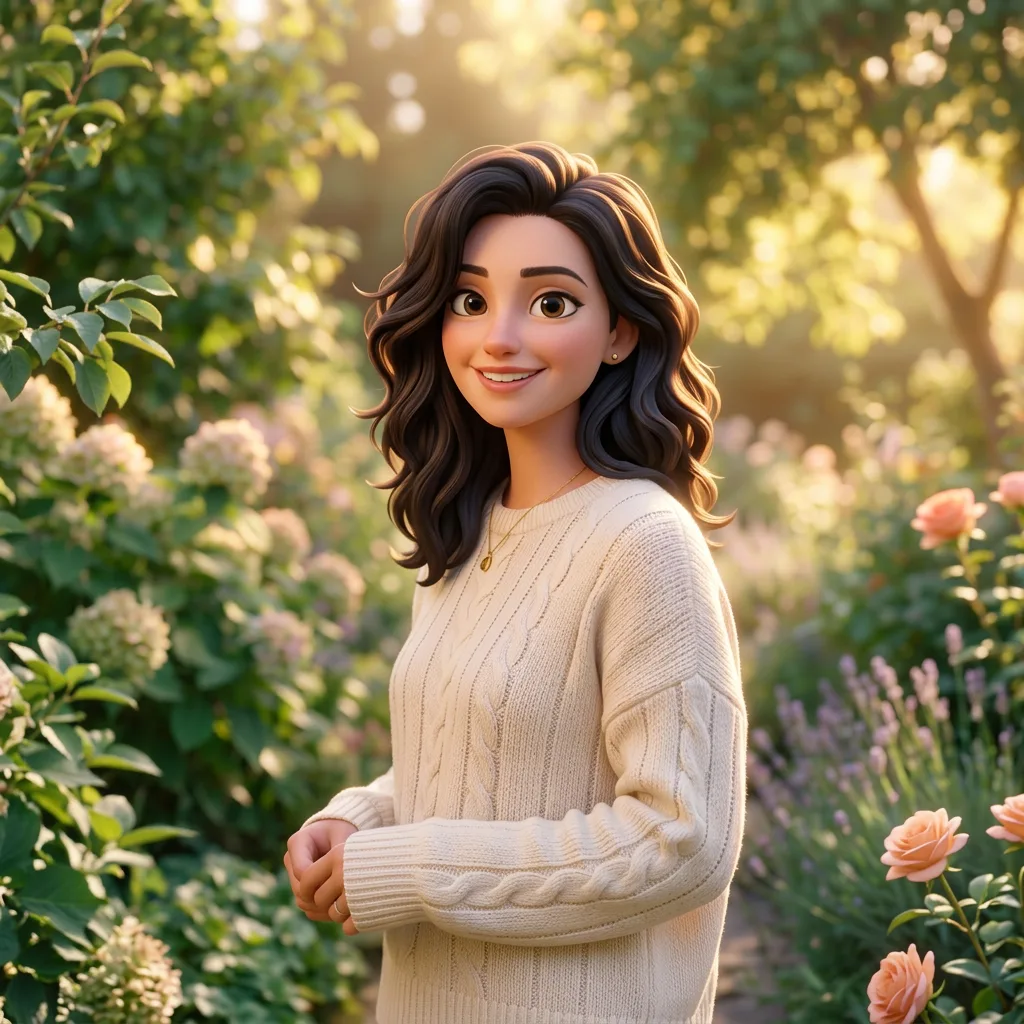
Prompt idea: Turn this photo into a 3D cartoon illustration. Keep the cream sweater, pose and garden setting, with warm afternoon light.
Illustrative example from the original template. Results vary by image, prompt and model.
How to generate an AI image from an image
- 01
Upload a reference image
Select Edit image, sign in and upload a JPG, PNG or WebP image you have permission to use.
- 02
Describe your changes
Explain what to change and what to keep. Choose your model and image settings, then check the displayed credit cost before generating.
- 03
Preview, refine and download
Review the result and download it from the preview. Continue the conversation to request another edit; each new generation uses credits.
AI image generator questions
How can I generate an AI image from an existing image?
Choose Edit image in the generator, upload a photo and describe the changes you want. Select your model and settings, check the credit cost and generate. You can preview the result, download it or keep editing in the same conversation.
What is the difference between image-to-image and text-to-image?
Image-to-image starts from an uploaded reference and your instructions. Text-to-image starts from a written description without a source photo. Use Edit image for a reference-based variation, or Generate image to start from text.
Will the result keep every detail of my original image?
No. The reference guides the result, but AI may change faces, text, proportions or other details. Describe what should stay the same, use the markup tool to guide an edit and inspect the preview before using the image.
What image formats can I upload?
You can upload JPG, PNG or WebP images after signing in, with up to eight reference images per request. Use clear images you have permission to edit.
Are the examples generated from my prompt?
No. The gallery contains examples included with the template. You can preview them and reuse their prompts as a starting point.
How many credits does an image cost?
The cost depends on the selected model and settings. The generator displays the credit cost so you can check it before submitting.
Can I make changes after generating?
You can continue the image conversation with another request or use a generated image as a reference. Each new generation uses credits.